Manage an Offline Music Library with Linux
2026-01-30
Over the past year I started feeling nostalgic towards my iPod and the music library I built up over time. There’s a magic to pouring over one’s meticulously crafted library that is absent on Spotify or YouTube Music. Streaming services feel impersonal – and often overwhelming – when presenting millions (billions?) of songs. I missed a simpler time; in many many facets other than solely my music, but that’s a conversation for another time.
In addition to the reasons above, I want to be more purposeful in the usage of my mobile phone. It’s become a device for absent-minded scrolling. My goal is not to get rid of my phone entirely, but to remove its requirement for an activity. If I want to listen to music on a digital player1, that gives me the ability to leave my phone in another room for a while. I still subscribe to music streaming services, and there’s YouTube, but now I have an offline option for music.
During my days in high school and college, iTunes was the musical ecosystem of choice. These days I don’t use an iPhone, iPods are no longer supported, and most of my computers are running Linux. I’ve assembled a collection of open sources tools to replace the functionality that iTunes provided. Join me on this journey to explore the tools used to build the next generation of Adam’s Music Library.
Today we’ll rip an audio CD, convert the tracks to FLAC, tag the files with ID3 metadata, and organize them into my existing library.
Our journey begins with CDParanoia. This program reads audio CDs, writing their contents to WAV files. The program has other output formats and options, but we’re sticking with mostly default behavior.
I’ll place this Rammstein audio CD into the disc drive then we’ll extract its
audio data with cdparanoia. The --batch flag instructs the program to write
one file per audio track.
$ mkdir cdrip && cd cdrip
$ cdparanoia --batch --verbose
cdparanoia III release 10.2 (September 11, 2008)

Using cdda library version: 10.2
Using paranoia library version: 10.2
Checking /dev/cdrom for cdrom...
	Testing /dev/cdrom for SCSI/MMC interface
		SG_IO device: /dev/sr0

CDROM model sensed sensed: MATSHITA DVD/CDRW UJDA775 CB03


Checking for SCSI emulation...
	Drive is ATAPI (using SG_IO host adaptor emulation)

Checking for MMC style command set...
	Drive is MMC style
	DMA scatter/gather table entries: 1
	table entry size: 131072 bytes
	maximum theoretical transfer: 55 sectors
	Setting default read size to 27 sectors (63504 bytes).

Verifying CDDA command set...
	Expected command set reads OK.

Attempting to set cdrom to full speed...
	drive returned OK.

Table of contents (audio tracks only):
track        length               begin        copy pre ch
===========================================================
  1.    23900 [05:18.50]        0 [00:00.00]    OK   no  2
  2.    22639 [05:01.64]    23900 [05:18.50]    OK   no  2
  3.    15960 [03:32.60]    46539 [10:20.39]    OK   no  2
  4.    16868 [03:44.68]    62499 [13:53.24]    OK   no  2
  5.    19051 [04:14.01]    79367 [17:38.17]    OK   no  2
  6.    21369 [04:44.69]    98418 [21:52.18]    OK   no  2
  7.    17409 [03:52.09]   119787 [26:37.12]    OK   no  2
  8.    17931 [03:59.06]   137196 [30:29.21]    OK   no  2
  9.    15623 [03:28.23]   155127 [34:28.27]    OK   no  2
 10.    18789 [04:10.39]   170750 [37:56.50]    OK   no  2
 11.    17925 [03:59.00]   189539 [42:07.14]    OK   no  2
TOTAL  207464 [46:06.14]    (audio only)

Ripping from sector       0 (track  1 [0:00.00])
	  to sector  207463 (track 11 [3:58.74])

outputting to track01.cdda.wav

 (== PROGRESS == [                              | 023899 00 ] == :^D * ==)

outputting to track02.cdda.wav

 (== PROGRESS == [                              | 046538 00 ] == :^D * ==)

outputting to track03.cdda.wav

 (== PROGRESS == [                              | 062498 00 ] == :^D * ==)

outputting to track04.cdda.wav

 (== PROGRESS == [                              | 079366 00 ] == :^D * ==)

outputting to track05.cdda.wav

 (== PROGRESS == [                              | 098417 00 ] == :^D * ==)

outputting to track06.cdda.wav

 (== PROGRESS == [                              | 119786 00 ] == :^D * ==)

outputting to track07.cdda.wav

 (== PROGRESS == [                              | 137195 00 ] == :^D * ==)

outputting to track08.cdda.wav

 (== PROGRESS == [                              | 155126 00 ] == :^D * ==)

outputting to track09.cdda.wav

 (== PROGRESS == [                              | 170749 00 ] == :^D * ==)

outputting to track10.cdda.wav

 (== PROGRESS == [                              | 189538 00 ] == :^D * ==)

outputting to track11.cdda.wav

 (== PROGRESS == [                              | 207463 00 ] == :^D * ==)

Done.
As you can see, CDParanoia generates a lot of output, but you can follow along
with how the read process is going. If your eyes zeroed in on “2008” don’t
worry. CD technology hasn’t changed much in the last twenty years. CDParanoia
outperformed other tools I tried beforehand (abcde, cyanrip, or whipper)
in terms of successful reads and read speeds.
Check that we have all the tracks:
$ ls -1
track01.cdda.wav
track02.cdda.wav
track03.cdda.wav
track04.cdda.wav
track05.cdda.wav
track06.cdda.wav
track07.cdda.wav
track08.cdda.wav
track09.cdda.wav
track10.cdda.wav
track11.cdda.wav
Now that we have WAV files, let’s convert them to FLAC. There’s little magic
here. We’re using a command aptly named flac for this step.
$ mkdir flac
$ flac *.wav --output-prefix "flac/"

flac 1.5.0
Copyright (C) 2000-2009  Josh Coalson, 2011-2025  Xiph.Org Foundation
flac comes with ABSOLUTELY NO WARRANTY.  This is free software, and you are
welcome to redistribute it under certain conditions.  Type `flac' for details.

track01.cdda.wav: wrote 39249829 bytes, ratio=0.698
track02.cdda.wav: wrote 37090483 bytes, ratio=0.697
track03.cdda.wav: wrote 28746104 bytes, ratio=0.766
track04.cdda.wav: wrote 26274282 bytes, ratio=0.662
track05.cdda.wav: wrote 33332534 bytes, ratio=0.744
track06.cdda.wav: wrote 34302576 bytes, ratio=0.683
track07.cdda.wav: wrote 27432371 bytes, ratio=0.670
track08.cdda.wav: wrote 31255548 bytes, ratio=0.741
track09.cdda.wav: wrote 27562453 bytes, ratio=0.750
track10.cdda.wav: wrote 29581649 bytes, ratio=0.669
track11.cdda.wav: wrote 23183858 bytes, ratio=0.550
Now we have FLAC files of our CD:
$ ls -1 flac/
track01.cdda.flac
track02.cdda.flac
track03.cdda.flac
track04.cdda.flac
track05.cdda.flac
track06.cdda.flac
track07.cdda.flac
track08.cdda.flac
track09.cdda.flac
track10.cdda.flac
track11.cdda.flac
We’re halfway there. Now we’re going to apply ID3 metadata to our files (and rename them) so our music player knows what to display. For that we’ll be using MusicBrainz’s own Picard tagging application.
To avoid assaulting you with a wall of screenshots, I’m going to describe a few clicks then show you what the end result looks like.
Open picard. Select “Add Folder” then select the directory containing our
FLAC files. By default these files will be unclustered after Picard is aware of
them. Select all the tracks in the left column, then click “Cluster” in the top
bar.
Next we select the containing folder of our tracks in the left column, then
click “Scan” in the top bar. Picard queries the MusicBrainz database for album
information track by track. We’ll see an album populated in the right column.
Nine times out of ten, Picard is able to correctly find the album based on
acoustic finger prints of the files, but this Rammstein album had enough
releases that the program incorrectly identified the release. It’s showing two
discs when my release only has one. Using the search box in the top right, I
entered the barcode for the album (0602527213583), and we found the correct
release. I dragged the incorrectly matched files into the correct album, to
which Picard adjusts. Let’s delete the incorrect release by right clicking, and
selecting “Remove”.
This is what our view looks like now.
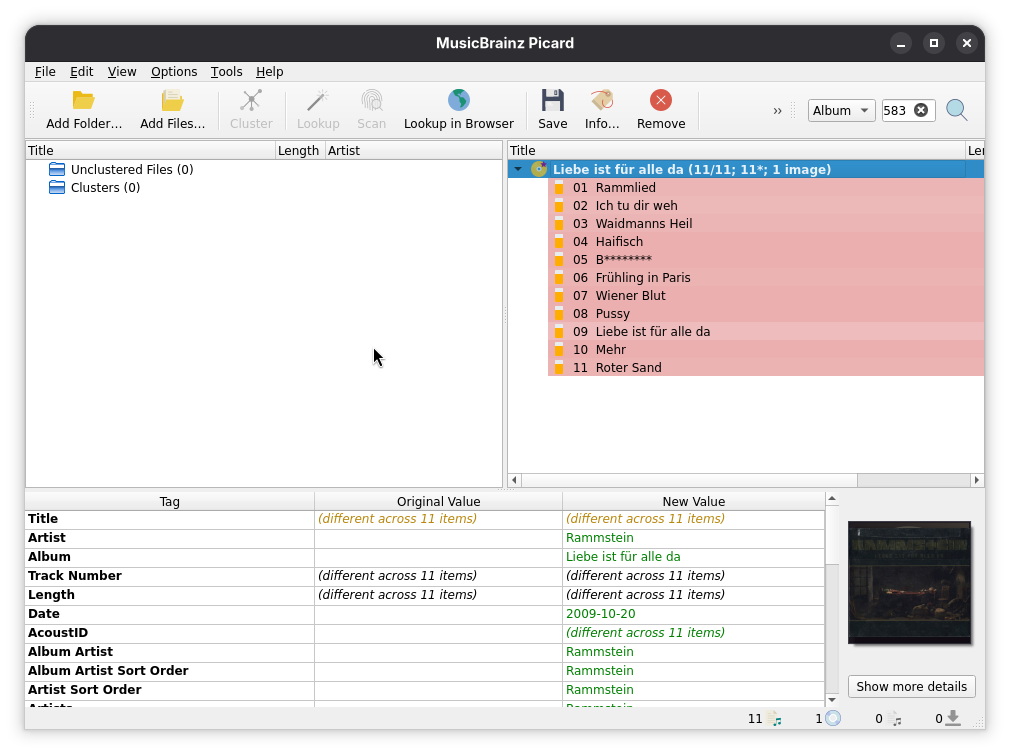
Files have been imported into Picard, clustered together, then matched with a release found in the MusicBrainz database. Our last click with Picard is to hit “Save” in the top bar, which will write the metadata to our music files, rename them if desired, and embed cover art.
Gaze upon our beautifully named and tagged music:
$ ls -1 flac/
'Rammstein - Liebe ist für alle da - 01 Rammlied.flac'
'Rammstein - Liebe ist für alle da - 02 Ich tu dir weh.flac'
'Rammstein - Liebe ist für alle da - 03 Waidmanns Heil.flac'
'Rammstein - Liebe ist für alle da - 04 Haifisch.flac'
'Rammstein - Liebe ist für alle da - 05 B________.flac'
'Rammstein - Liebe ist für alle da - 06 Frühling in Paris.flac'
'Rammstein - Liebe ist für alle da - 07 Wiener Blut.flac'
'Rammstein - Liebe ist für alle da - 08 Pussy.flac'
'Rammstein - Liebe ist für alle da - 09 Liebe ist für alle da.flac'
'Rammstein - Liebe ist für alle da - 10 Mehr.flac'
'Rammstein - Liebe ist für alle da - 11 Roter Sand.flac'
cover.jpg
Your files may be named differently than mine if you enabled file renaming. I set my own simplified file naming script instead of using the default.
The last step in our process is to move these files into the existing library. My library is organized by album, so we’ll rename our flac directory as we move it.
$ mv flac "../library/Rammstein - Liebe ist für alle da"
There we have it! Another album added.
You might be thinking to yourself, “Adam that’s a lot of steps,” and you’d be
right. That’s where our last tool of the day comes in. I don’t go through all
these steps manually every time I buy a new audio CD or digital album on
Bandcamp. I use just (ref) as a command runner to take care of these steps
for me. I could probably make it even more automated, but this is what I have
at the time of writing. Have a look at my justfile below. There some extra
stuff in there than what I showed you today, but it’s not necessary for
managing a music library.
Thanks so much for reading. I hope this has inspired you to consider your own offline music library if you don’t have one already. It’s been a fun adventure with an added bonus in taking back a bit of attention stolen by my mobile phone.
checksumf := "checksum.md5"
ripdir := "rips/" + `date +%FT%H%M%S`

# rip a cd, giving it a name in "name.txt"
rip name:
    mkdir -p {{ripdir}}
    cd {{ripdir}} && cdparanoia --batch --verbose
    cd {{ripdir}} && echo "{{name}}" > name.txt
    just checksum-dir {{ripdir}}

# convert an album of WAVs into FLAC files, place it in <name> directory
[no-cd]
flac name:
    mkdir -p "{{name}}"
    flac *.wav --output-prefix "{{name}}/"
    cd "{{name}}" && echo "cd rip" > source.txt

# create a checksums file for all files in a directory
checksum-dir dir=env("PWD"):
    cd "{{dir}}" && test -w {{checksumf}} && rm {{checksumf}} || exit 0
    cd "{{dir}}" && md5sum * | tee {{checksumf}}

# validate all checksums
validate:
    #!/usr/bin/env fish
    for dir in (\ls -d syncdir/* rips/*)
        just validate-dir "$dir"
        echo
    end

# validate checksums in a directory
validate-dir dir=env("PWD"):
    cd "{{dir}}" && md5sum -c {{checksumf}}

# sync music from syncdir into the hifi's micro sd card
sync dest="/media/hifi/music/":
    rsync \
        --delete \
        --human-readable \
        --itemize-changes \
        --progress \
        --prune-empty-dirs \
        --recursive \
        --update \
        syncdir/ \
        "{{dest}}"
-
a HIFI Walker H2 running Rockbox. ↩